What’s included in our 5-star support package
Our in-house tech and customer support teams are rated 5-star by our customers. From onboarding and ongoing intranet success, to tech support and software updates, our teams are on hand to help you throughout your intranet journey.
| Features | Small/Medium/Large License | Enterprise License |
|---|---|---|
| 24/7 online support portal access |  | |
| 24/7 online community access | | |
| Onboarding services | | |
| Regular system updates | | |
| Free webinars | | |
| Email support | | |
| Opportunity to submit product suggestions | | |
| Enhanced SLAs included* | | |
| Account manager | | |
| Regular touch calls | | |
| Named escalation manager | |
Online training
Become Claromentis experts with our online intranet software training sessions, where we adopt a ‘train-the-trainer’ style approach that empowers you to capture and share intranet knowledge throughout your company. Our training is live, interactive, and engaging, all with the added convenience of taking place online at a time that suits you and your team.


Onboarding services
We understand the importance of intranet success, and want to help you achieve that from day one. Our onboarding services include collaborative workshops with our customer success team, who will work with you to build an intranet that reflects your company’s branding, ethos, and end-goals.
Free webinars
We believe that continuous education is a vital component of intranet success. That’s why we host regular free webinars with advice on intranet best practises, application tips and tricks, and Q&A feedback sessions. By keeping your knowledge up-to-date, you can ensure your intranet always stays fresh and relevant.

Continuous software updates
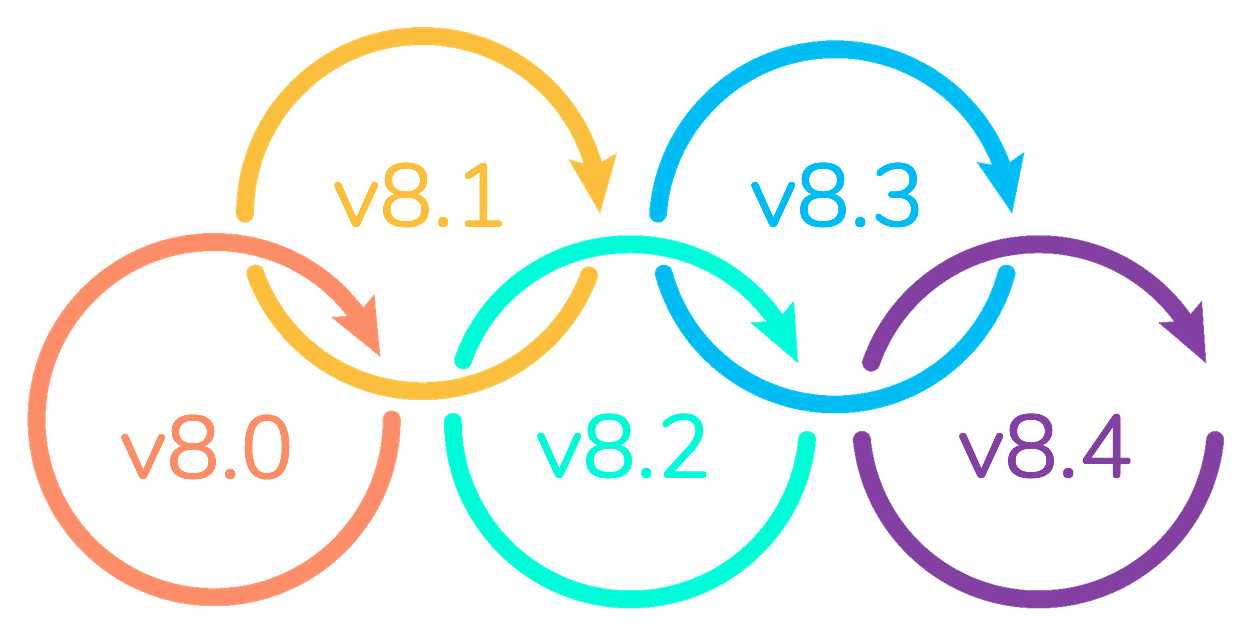
The world of work is constantly changing, so we ensure our intranet software not only changes with it, but stays ahead of the game too. Benefit from regular software updates which will include new intranet features, application enhancements, and up-to-date security.
Technical support
Got a technical query? Our in-house tech team will have the answer. Simply submit a ticket on our online support portal and we’ll get right on it.

Endless intranet resources
We provide all the resources you could ever need to help you manage your digital workplace. From how-to articles and user guides to training videos and regular tips & tricks, our support portal is always updated with the latest advice and best practises.


